Mastering Canva for 9x12 Postcards: A Complete Guide to Creating Professional Ad Designs
Direct mail marketing is experiencing a resurgence, offering businesses a tangible way to connect with their audience in an increasingly digital world.…
Direct mail marketing is experiencing a resurgence, offering businesses a tangible way to connect with their audience in an increasingly digital world. Studies show that direct mail boasts significantly higher response rates compared to email marketing, making it a valuable tool for customer acquisition and brand building. However, creating effective direct mail campaigns often requires professional design skills, which can be costly. This is where Canva comes in. If you’re new to the 9x12 model, start with our complete beginner’s guide before diving into design.
This article is designed to guide you, whether you’re a marketing newbie or seasoned pro, through the process of using Canva to create stunning 9x12 postcard designs for direct mail campaigns. We’ll explore Canva’s essential features, delve into advanced design techniques, and provide actionable strategies for implementing successful direct mail campaigns.
Getting Started with Canva for Direct Mail Design
Canva is a user-friendly graphic design platform that empowers anyone to create professional-quality visuals, including direct mail postcards. Its intuitive interface and vast library of templates make it an ideal choice for businesses of all sizes.
Platform Basics
Creating a Free Canva Account: Head over to Canva.com and sign up for a free account. The free version offers plenty of features to get started with direct mail design.
Navigating the Dashboard: Once logged in, you’ll see the Canva dashboard. It’s organized with various design options, templates, and your recent projects.
Understanding the Workspace Layout: The workspace is where you’ll bring your design ideas to life. It includes a canvas area, a sidebar with design elements, and a top menu with editing options.
Essential Tools and Features for Beginners: Familiarize yourself with the basic tools like text, elements (shapes, images, graphics), uploads, and background.
Setting Up Your Design Space
Choosing Correct Dimensions: Direct mail requires precise dimensions. The video emphasizes the 4x3 and 4x6 ad sizes. Canva also allows custom dimensions if needed.
Using Pre-made Templates: Canva offers a variety of pre-designed templates. While some may not be specifically for direct mail, they can provide inspiration and starting points. The video creator also offers pre-sized templates in their community.
Understanding Bleed Areas and Safe Zones: Bleed areas are the edges of your design that extend beyond the final trim size. Safe zones are the areas within the trim size where important content should be placed to avoid being cut off during printing.
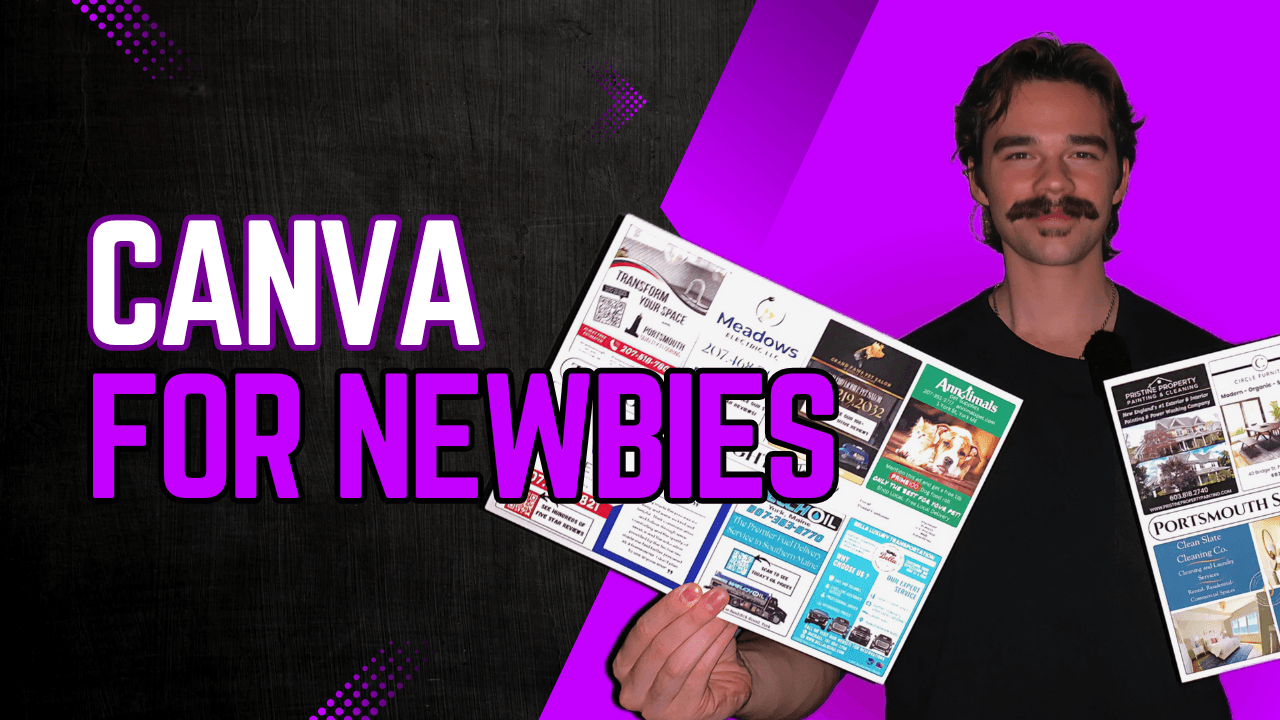
Working with the 9x12 Template Structure: The 9x12 template is the final canvas where you’ll arrange your individual ad designs. The video recommends designing ads separately and then importing them as PNG files to the 9x12 template.
Essential Design Elements for Direct Mail Success
Creating a compelling direct mail piece involves mastering essential design elements that capture attention and drive action.
Working with Visual Elements
Uploading and Managing Images: Canva allows you to upload your own images or choose from its extensive library of stock photos and graphics.
Using Shapes and Borders: Shapes and borders can add visual interest and structure to your design. The video creator suggests using squares to change background colors or create borders.
Creating Transparent Backgrounds: Transparent backgrounds are useful for logos and graphics that you want to overlay on other elements. The video mentions using a free online tool called remove.bg for this purpose.
Managing Layers and Positioning: Canva’s layering system allows you to control the order in which elements appear on your design. Use the “Position” tool to bring elements forward or send them backward.
Typography and Text Management
Selecting Appropriate Fonts: Choose fonts that are easy to read and align with your brand’s personality. Serif fonts are often recommended for print designs.
Text Sizing and Spacing: Ensure your text is large enough to read easily. Pay attention to line spacing (leading) to improve readability.
Creating Hierarchy with Headlines: Use headlines to grab attention and guide readers through your message. Make them larger and bolder than body text.
Best Practices for Readability: Use clear and concise language, avoid jargon, and ensure sufficient contrast between text and background.
Color Management
Using the Eyedropper Tool for Brand Consistency: Canva’s eyedropper tool allows you to sample colors from any image or website, ensuring brand consistency. The video recommends using the “Color Pick Eyedropper” Chrome extension.
Color Psychology in Direct Mail Design: Colors evoke emotions and influence consumer behavior. Use colors strategically to align with your brand and desired message.
Managing Background Colors: Choose background colors that complement your design and make your text and images stand out.
Creating Color Contrast for Impact: Use contrasting colors to highlight key elements like calls to action (CTAs).
Advanced Design Techniques
Take your direct mail designs to the next level with these advanced techniques.
QR Code Integration
Creating Trackable QR Codes:QR codes provide a seamless way for recipients to access online content. Canva allows you to generate QR codes directly within the platform.
Placement Strategies: Place QR codes in prominent locations where they are easily scannable.
Design Integration Tips: Integrate QR codes seamlessly into your design by matching their colors to your brand and adding a clear call to action.
Tracking and Analytics Options: While Canva’s QR code generator doesn’t offer tracking, you can use third-party QR code generators like Uniqode for detailed analytics.
Chrome Extensions for Enhanced Design
Color Pick Eyedropper Usage: This extension allows you to grab the exact color code from any website, ensuring brand consistency.
What Font Extension Benefits: Identify the fonts used on any website with this handy extension, allowing you to match your client’s brand identity.
Background Removal Tools: Remove.bg is a free online tool that quickly removes backgrounds from images, creating transparent PNGs.
Image Upscaling Techniques: If you have a low-resolution image, use an image upscaler to improve its quality. The video recommends IMG Upscaler.
Practical Applications and Workflows
Let’s put these design principles into practice and explore effective workflows for creating professional direct mail pieces.
Creating Professional Ads
Step-by-Step Ad Creation Process:
Choose the correct dimensions for your ad.
Select a background color or image.
Add your client’s logo and branding elements.
Craft a compelling headline and body text.
Include a clear call to action.
Add a QR code for easy online access.
Review and refine your design.
Design Templates and Examples: The video creator provides pre-made 4x3 templates to save time and provide inspiration.
Common Mistakes to Avoid:
Using too many fonts or colors.
Cluttered layouts.
Low-resolution images.
Failing to include a clear call to action.
Tips for Maintaining Brand Consistency: Use the eyedropper tool to match colors, select fonts that align with your brand, and maintain a consistent visual style.
Organizing the 9x12 Layout
Proper Placement of Ads: Arrange your individual ads strategically on the 9x12 template. Consider the visual hierarchy and flow of information.
Managing Multiple Design Elements: Keep the layout clean and organized. Avoid overcrowding the space with too many elements.
Creating Visual Separation: Use borders, lines, or background colors to create visual separation between ads.
Adding Borders and Finishing Touches: Add a subtle border around the entire 9x12 design to give it a polished look. The video creator recommends a 1-pixel border.
Technical Considerations and Export
Preparing your design for print requires attention to technical details to ensure a high-quality final product.
File Preparation
Choosing the Correct File Formats: The video recommends using PNG for individual ads and PDF Print for the final 9x12 design.
Setting Up for Print: When exporting your design as a PDF, select the “PDF Print” option to ensure the correct color mode and resolution.
Managing Resolution Requirements: Ensure all images are high resolution (300 DPI) to avoid pixelation.
Quality Control Checks: Before sending your design to the printer, double-check for typos, alignment issues, and other errors.
Print-Ready Requirements
Understanding Printer Specifications: Communicate with your printer to understand their specific requirements for file formats, bleed areas, and color modes.
Managing Bleed and Trim Areas: Ensure your design extends beyond the trim area to avoid white edges. Keep important content within the safe zone.
Color Mode Considerations: Use CMYK color mode for print designs.
File Delivery Best Practices: Send your printer a high-resolution PDF file with bleed and trim marks.
Business Implementation Strategies
Turning your design skills into a profitable business requires a strategic approach to pricing, client management, and marketing.
Pricing and Package Structure
Standard Ad Sizes and Pricing: The video creator charges $500 for a 4x3 ad and $900 for a 4x6 ad in their 9x12 postcard.
Multi-Month Commitment Options: Offer discounts for clients who commit to multiple months to secure recurring revenue.
Handling Design Revisions: Set a clear limit on the number of design revisions included in your package.
Package Presentation Strategies: Present your pricing and packages in a clear and professional manner. Highlight the value of direct mail marketing and your design expertise.
Setting Clear Expectations: Communicate clearly with clients about the design process, timelines, and revision policies.
Managing Revision Requests: Respond to revision requests promptly and professionally.
Tracking Campaign Performance: While you may not be tracking QR code scans, encourage clients to track their own results (e.g., website traffic, sales, leads).
Building Long-Term Relationships: Provide excellent customer service and build strong relationships with your clients to encourage repeat business.
Conclusion
Canva empowers you to create professional-quality direct mail designs without breaking the bank. By mastering the essential design elements, advanced techniques, and business strategies outlined in this article, you can unlock the potential of direct mail marketing and drive results for your clients. Remember to leverage the resources and templates available, stay consistent with your branding, and always prioritize clear communication with your clients. With Canva and a strategic approach, you can create direct mail campaigns that stand out and deliver a tangible return on investment.
Ready to run your own card?
Get the course, scripts, tools, and weekly coaching inside the 9x12 Method community.

 Mitchell Tebo