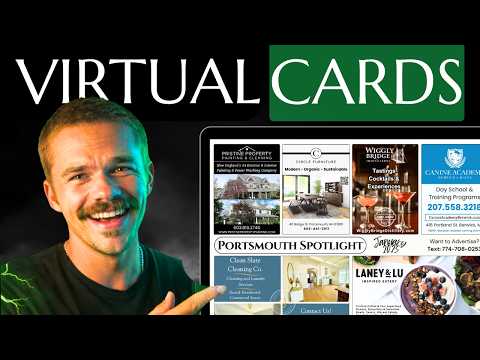
A quick walkthrough of the 9x12 Method CRM card management feature: build custom card layouts, activate campaigns, and track sold ad slots visually.
Key takeaways
- Drag and drop single, half, double, or triple ad slots to build and save your own card template, and set a custom price for each slot.
- Activating a card creates a named campaign, such as a town and month, with its own templates for the front and back.
- When you make a sale, click the slot, attribute it to the contact, and upload their ad so you can see the finished card.
- Run several cards at once, like two different towns, and check the percentage sold for each one from the active cards view.
Read the full guide
 9x12 Tools
9x12 Method CRM: The Complete Guide
Everything you need to know about the 9x12 Method CRM — the only CRM built for running a shared-mail postcard business. Features, setup, and real reviews.
14 min read
 Getting Started
9x12 Method CRM Card Management: Manage Multiple 9x12 Postcard Campaigns For Easy Sales
Direct mail marketing is experiencing a resurgence, with businesses recognizing its power to cut through the digital noise and connect with audiences on a…
6 min read
Read the full transcript
Auto-generated from the video, lightly formatted. Expect a few typos.
Welcome to the 9x12 method CRM card management feature. This is my favorite feature because it allows you to actually build your 9x12 template. However you choose. So, it's a drag and drop feature. You just drag a single ad, half ad, double ad, however you want it to look, you can create it.
Let's put a triple ad here, a single ad here. Beautiful. We can save that template and we're going to be able to use that template when it comes time to create a campaign. We're just going to name it favorite. So, we save that template and you can see and delete any save templates here.
There's one other feature that I skipped over, which is you'll actually be able to change the price of the specific ad if you'd like. So, let's say you sell your half ads for $200. You can actually save those changes. So now it'll be a $200 slot instead of our pre-selected $300 because we can't predict the price that you're going to use. Okay.
But we've already created a custom template. So we're going to actually activate a card. So this is when you're actually going to start selling out your card. And you can name it whatever you would like. I'm going to name mine York January 2025 because that's the campaign I'm on right now.
And we already have pre-made templates, pretty standard ones. You can see the 4x4 layout and then one with a double slot. So, we have some standard templates for you, but we also see the template that you created named favorite. So, we'll click this for the front one. And now you can see we're choosing the back template.
Now, we're going to choose the favorite one that we created. And now we just activated our campaign. We have the York January 2025 campaign. And you can see the front side of the card hasn't been sold yet. And you can also see the back side of the card with the template that we created.
So, you could actually get a full view of your card. Let's say we make a sale and we sold this ad slot. We can actually click on the ad slot and attribute it to the contact that we sold to. So let's say we sold the ad slot to Mitchell Tibo. We'll attribute it to him and you can actually upload their ad image so that you can see what the card actually looks like with everybody's ads and you can keep track of everybody's ads obviously.
So now it's attributed to Mitchell Tibo as sold for 500 bucks and you can actually see his ad. You can see the percentage of your card that you've sold out and you can also view card details here where you can see a bunch of helpful information. Now, right now we're just looking at one active card, but you actually have the ability to have multiple. So, if we go to active cards, you can see we only have York, but if we went through and activated another card, let's call this Portland January 2025. We could choose the templates again.
And again, you can create as many custom templates as you want, but let's choose this one for the front and then this one for the back this time. Now we're in the Portland January 2025. So we can have multiple cards running at the same time. So when we go to active cards, see we have York and Portland running at the same time and you can get a quick little view of how far along you are. And of course you can delete campaigns if you end up canceling them.
This is my favorite feature for obvious reasons because now you don't need to use a spreadsheet to somehow keep track of who sent in their ads and who's paid you and blah blah blah and what the card looks like. You can actually see all of your cards and all of your progress right here. So, this is really helpful for anybody who's scaling to multiple cards because, as you know, it starts to get really confusing once you're trying to keep track of multiple sets of clients from multiple different cards. It becomes a mess. So, this helps you organize and actually see
New videos every week on YouTube.
Subscribe on YouTube